
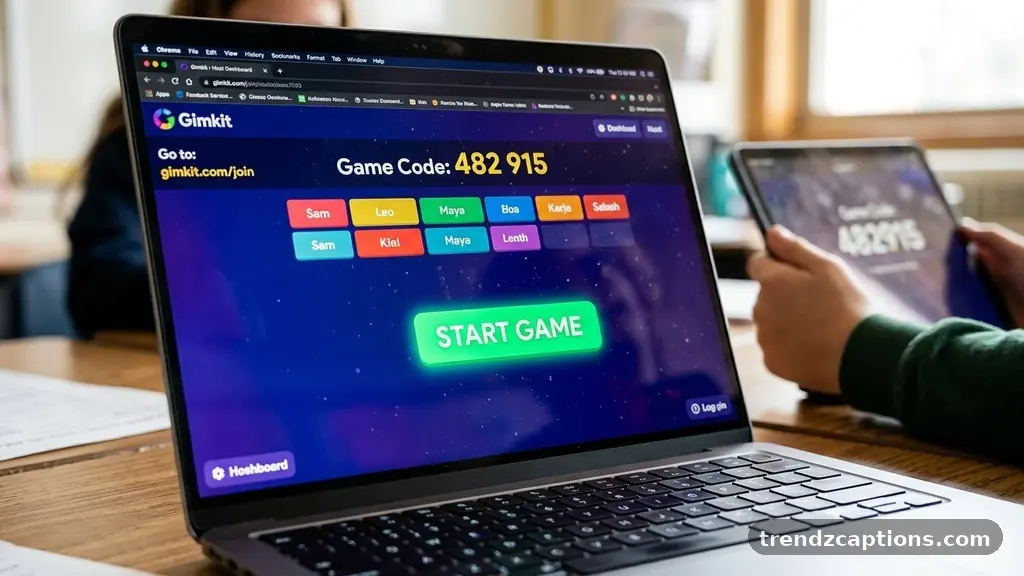
A Gimkit Host session lets a teacher turn a quiz into an interactive classroom game, with students joining from their own devices through a short code. The basic process is simple: choose a kit, select a game mode, adjust the lobby settings, start the live game, and share the Gimkit game code. Small setup choices matter, though, especially if you want students to join quickly and the activity to support a clear learning goal.
This walkthrough explains how to host a Gimkit game, where to find the code, what students see at join.gimkit.com, and how to handle common classroom problems before they interrupt the lesson.
How to Host a Gimkit Game
To begin, sign in to your Gimkit account and open the Gimkit dashboard. From there, choose one of your existing Gimkit kits or create a new kit with the questions you want students to answer.
Open the selected kit and choose the option to play or host it. Gimkit may present several game modes, and the available choices can change as the platform updates, so focus on the mode that matches your lesson rather than choosing purely for novelty.
After selecting a mode, review the game settings before launching the session. Depending on the mode, you may be able to control factors such as time, question behaviour, in-game advantages, team arrangements, or whether students can continue playing after answering.
When the lobby opens, Gimkit displays a join screen containing a temporary game code. The code is created for that particular session, so a code from an earlier class generally cannot be reused for a new live game.
The essential hosting sequence is:
- Sign in to your Gimkit account.
- Open the Gimkit dashboard and select a kit.
- Choose a game mode that suits the lesson.
- Check the lobby settings, player limit, and other game settings.
- Start the session to generate the Gimkit game code.
- Share the code and wait for students to appear in the lobby.
- Begin the game once the correct participants are ready.
Students usually join by visiting join.gimkit.com on a phone, tablet, or computer. They enter the displayed code, provide a name or nickname if prompted, and wait in the lobby for the host to start the activity.
Before starting, scan the participant list for unfamiliar names or duplicate entries. If a student mistypes a name, you can often ask them to leave and rejoin with a clearer classroom identifier.
The host controls the start of the round, so students should not expect the activity to begin immediately after entering the code. This short pause is useful because it gives you time to confirm that the class is in the right game and that the number of players looks reasonable.
For official platform information, check the Gimkit Help Center if a button or setting looks different from the instructions above. Interface labels can change, particularly when Gimkit introduces a revised dashboard or new game modes.
Choosing Kits, Modes, and Settings
A successful Gimkit classroom game starts before students see the code. The questions, mode, and pacing should reinforce what you want students to practise, whether that is vocabulary recall, arithmetic fluency, science terminology, or review before an assessment.
Use an existing kit when you need a quick review session, but inspect its questions first. A kit may contain outdated wording, an answer choice that is too obvious, or questions that no longer match the class’s current unit.
Creating or editing Gimkit kits gives you more control over difficulty and sequence. For example, a language teacher might mix translation questions with sentence-completion prompts instead of using only isolated vocabulary definitions.
Game modes can produce very different classroom experiences. A competitive mode may create energy during a short review, while a team-based mode can encourage discussion among students who benefit from comparing reasoning before answering.
Some modes place more emphasis on individual strategy, purchases, or power-ups than others. That can be enjoyable, but it may distract from the learning target if students spend most of their attention managing game mechanics rather than thinking about the questions.
Think about the class size before selecting a format. A mode that feels manageable with twelve students may become difficult to monitor with thirty-five, particularly if the lobby settings allow fast movement between questions.
Useful settings to review include:
- Time or end condition: decide whether the session ends after a set period, a target, or another mode-specific condition.
- Player limit: make sure the permitted number of participants is large enough for the class, including any co-teachers or test accounts.
- Team options: check whether students are placed into teams automatically or whether the host can influence the arrangement.
- Question settings: review whether questions appear in a fixed order, a random order, or according to the selected mode.
- Lobby controls: determine when students may enter and when the session should be locked or started.
Run a short test if the kit includes unfamiliar question types. You can inspect the student view on a second device, which helps reveal confusing instructions, cramped answer choices, or media that does not load as expected.
Keep the first round focused. A ten-minute live game with a clear objective is often easier to discuss afterward than a long session where the competitive elements gradually overwhelm the lesson.
It also helps to tell students how the activity will be used. Explain whether the score is practice only, whether names should follow a classroom convention, and whether students should discuss answers with teammates before submitting them.
How to Share the Gimkit Game Code
Once the lobby is open, the Gimkit game code should be visible on the host screen. The simplest approach is to display the code on a projector or shared screen while giving students brief, spoken joining instructions.
Say the web address and code separately. For example, tell students to open join.gimkit.com first, then read the code slowly in groups of characters rather than rushing through the entire string.
Students can usually join from a browser without installing a separate application. A school tablet, Chromebook, laptop, or phone may work, but the exact experience depends on the device, browser, network, and any restrictions set by the school.
Clear student join instructions might be:
- Open a browser and go to join.gimkit.com.
- Enter the Gimkit game code shown on the classroom screen.
- Type a recognisable name or the name format your teacher requested.
- Wait in the lobby and keep the device open until the host starts.
Posting the code in a learning management system or class message can help students who are joining remotely. Even then, keep the code visible in the live lobby because students may accidentally enter a character incorrectly or join after the session has already started.
Do not assume that every student can see the projector clearly. If the room is large, read the code aloud and write it on a board, but avoid leaving a session code publicly available after the activity ends.
If students report that the code does not work, first check that they are using the current code from the active lobby. A previous Gimkit game code may no longer be valid, and students can also accidentally enter the host website rather than the join page.
Names deserve a quick check, too. A student may appear as a random nickname because of a typo, a browser autofill entry, or a deliberate attempt to be funny, so agree on naming expectations before the game begins.
For younger learners, place the joining steps somewhere they can see while you troubleshoot. A small slide with the website, code, and name rule reduces repeated questions and lets you focus on the game itself.
Remote students may experience a short delay between entering the code and appearing in the lobby. Give them a moment before restarting the game, and ask whether they are connected to the correct class session rather than assuming the platform has failed.
Managing the Live Game in Class
Hosting does not end when students enter the lobby. The Gimkit host still needs to establish the rhythm of the session, watch for technical issues, and connect the game questions to instruction.
Start by explaining the first round in plain language. Tell students what counts as success, whether they should work independently, and how long they have before you pause for discussion or move to the next activity.
Keep an eye on the participant list as the game begins. A sudden drop in numbers may indicate a Wi-Fi issue, a device sleeping, or a student accidentally closing the browser.
When a student is disconnected, avoid stopping the whole game immediately unless several people are affected. Ask the student to reconnect using the same session details, then decide whether a short pause is fairer than allowing the round to continue.
Game modes can create different kinds of noise. Fast individual play may produce excitement but limited conversation, while team play can prompt useful reasoning if you require students to explain why an answer is correct.
Use planned pauses to turn game activity into learning. After a difficult question, ask students to justify the answer, identify the clue they missed, or write a corrected explanation before the next round begins.
Scores are useful feedback, but they should not be the only measure of understanding. A student can perform well through quick recall while still holding a misconception, so pair the final score with a short discussion or exit question.
During the live game, monitor:
- Whether the questions are producing the intended level of challenge.
- Whether students understand the rules of the selected game mode.
- Whether one technical problem is affecting several devices.
- Whether the pace leaves time for explanation and correction.
- Whether student names and behaviour remain suitable for the classroom.
If the room becomes overly competitive, reset the tone without cancelling the activity. You can frame the next round as a group accuracy challenge, ask students to explain their reasoning, or reward careful discussion rather than simply celebrating the highest score.
For assessment review, take notes on questions that many students miss. Those items can become the starting point for a mini-lesson, a board example, or a follow-up kit designed around the class’s actual misunderstandings.
End the game deliberately rather than letting the last screen become the lesson’s final moment. Give students a brief summary of the target skill and state what they should remember from the questions they just answered.
Fixing Common Hosting Problems
Most joining problems have a simple cause, so check the basics before changing several settings at once. Confirm that the host is on the intended kit, the lobby is active, and students are using the current code shown on screen.
If nobody can join, test the internet connection on the host device first. Then ask one student to try the join page, because a blocked network, filtered website, or temporary school-wide issue may affect everyone.
If only one student is struggling, check the device more narrowly. The student may have entered the code incorrectly, opened an outdated browser tab, lost Wi-Fi, or used a school account with restrictions that prevent the session from loading.
A missing student in the lobby does not always mean the person is absent. Look for a different nickname, a duplicate name, or a participant who entered a code for another teacher’s session.
When the player limit is reached, remove test accounts or unused entries before asking students to try again. A teacher who tested the lobby on several devices may unintentionally occupy spaces that classmates need.
Some classroom networks restrict interactive websites or real-time connections. If the platform works on a personal hotspot but not on school Wi-Fi, contact the school’s technology administrator rather than repeatedly restarting the game.
Have a low-tech backup ready for important lessons. You can display the same questions, use mini-whiteboards, or ask students to record answers on paper while the technical issue is resolved.
A practical troubleshooting order is:
- Confirm the active Gimkit game code.
- Check that students are visiting join.gimkit.com.
- Verify the student entered the code and name correctly.
- Refresh or reopen the browser if one device is stuck.
- Check Wi-Fi and school filtering if several devices fail.
- Use a prepared backup activity if the interruption continues.
After class, review what caused the problem while the details are fresh. If the same issue appears repeatedly, adjust the opening routine, print the student join instructions, or ask for technical support before the next Gimkit classroom game.
Frequently Asked Questions
Where do students enter a Gimkit game code?
Students generally enter the code at join.gimkit.com. They should use the code displayed in the host’s active lobby, because a code from a previous session may not work.
Can I host a Gimkit game without creating a new kit?
Yes, you can usually host an existing kit from the Gimkit dashboard. Review its questions and settings first so the activity matches the lesson and the class level.
Why can’t a student join the live game?
Check the code, web address, spelling of the student’s name, browser connection, and school network restrictions. If several students cannot join, the issue is more likely to involve the network or the active session than one student’s device.
Can students join after the game has started?
That depends on the selected game mode and its settings. If late joining is allowed, a student may enter the active session; otherwise, you may need to wait in the lobby or use another arrangement.
How should I choose a game mode?
Choose based on the learning objective, class size, available time, and amount of competition you want. A quick individual mode can suit recall practice, while a team-oriented mode may work better when explanation and collaboration are part of the lesson.
Make Hosting Simple and Predictable
A reliable Gimkit Host routine is straightforward: prepare the kit, select suitable game settings, open the lobby, share the current code, and check students before starting. Clear student join instructions and a short backup plan prevent most small problems from taking over the lesson.
Use the live game as a teaching activity, not just a scoreboard. When the host pauses to discuss missed questions and connects the results to the next classroom task, Gimkit becomes a useful part of instruction rather than a distraction.